




Ensuring your online store complies with age-restriction laws and regulations is crucial for many businesses, especially those selling products intended for a specific age group. The Mega Age Verification app is designed to help you seamlessly integrate age verification into your Shopify store, providing a user-friendly and secure way to restrict access based on age.
Why Use Mega Age Verification?
The Mega Age Verification app offers a straightforward solution to ensure your store meets legal requirements and provides a safe shopping environment. It helps you avoid potential legal issues and ensures that only the appropriate audience can access your products. Plus, it enhances your brand’s credibility by demonstrating a commitment to responsible retail practices.
What This Guide Covers
In this guide, we will walk you through the steps to:
- Install the Mega Age Verification app on your Shopify store
- Customize the age verification settings to match your store’s branding
By the end of this guide, you’ll have a fully functional age verification system in place, keeping your store compliant and your customers happy. Let’s get started!
How to Install the app
Step 1: Find the Mega Age Verification App on the Shopify App Store and click “install” and then “Continue”
Search for “Mega Age Verification” in the Shopify App Store and click on the app to open its details page.

step 2: Click on “Select Plan”
you can choose between a monthly subscription or an annual subscription at a discounted price equivalent to only 10 months (save 2 months)
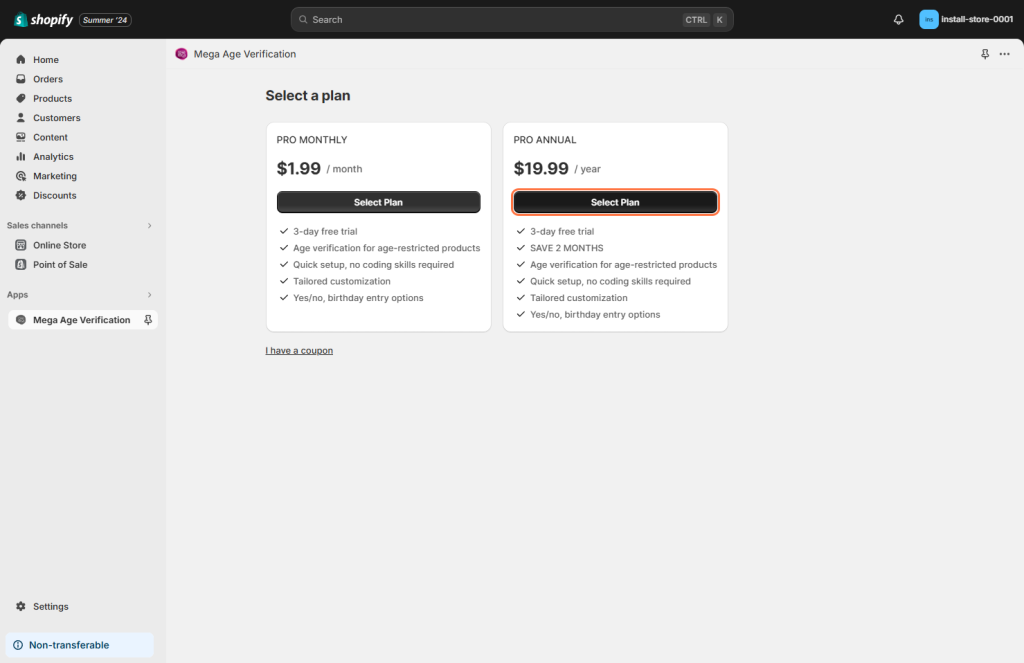
step 3: Choose your payment method
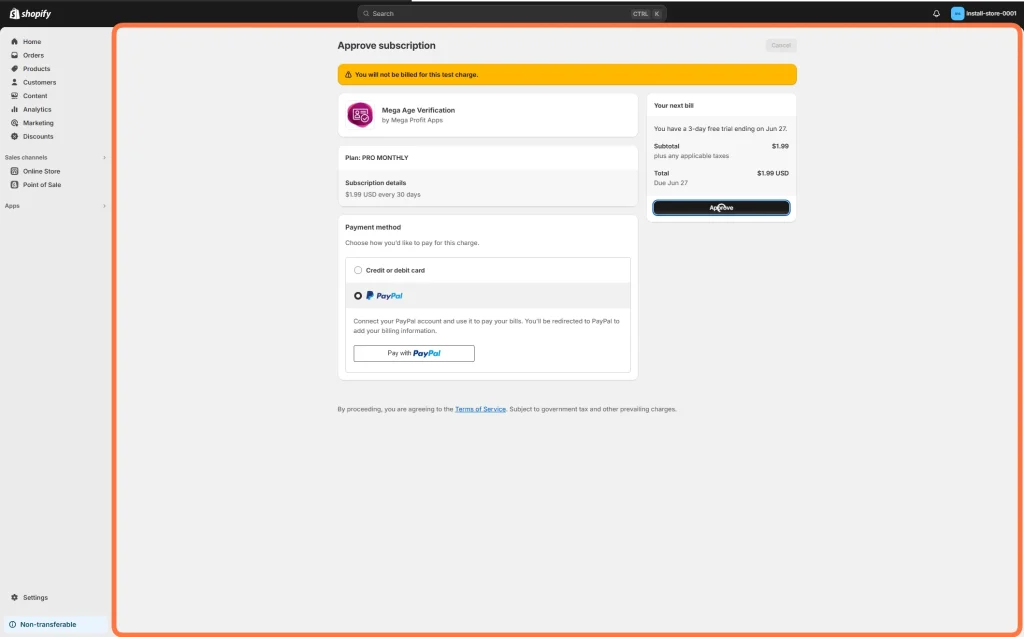
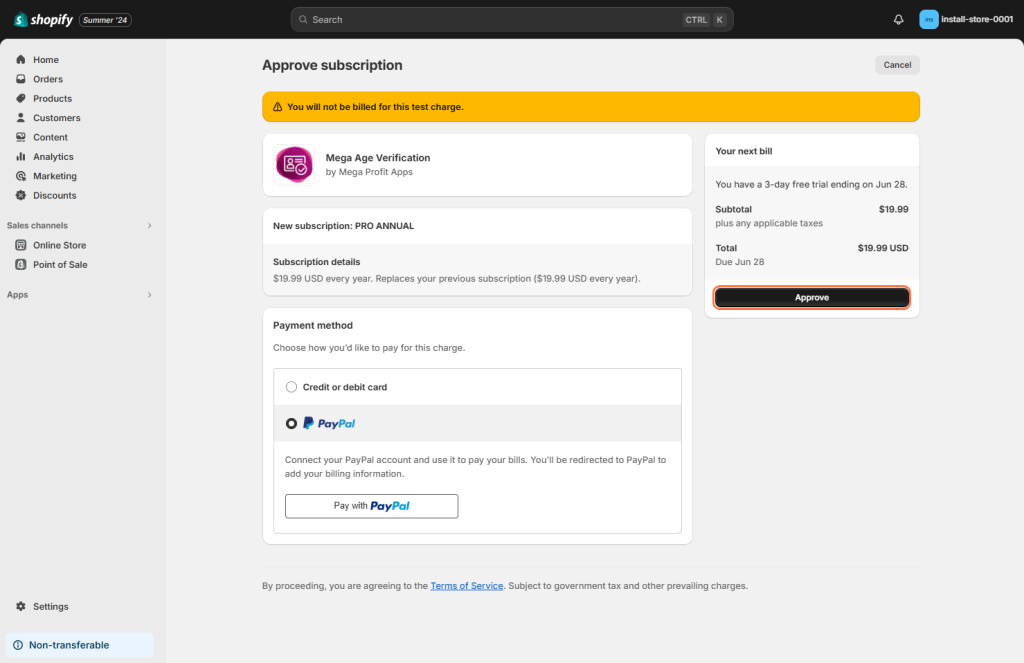
step 4: click “Approve” to finalize the purchase
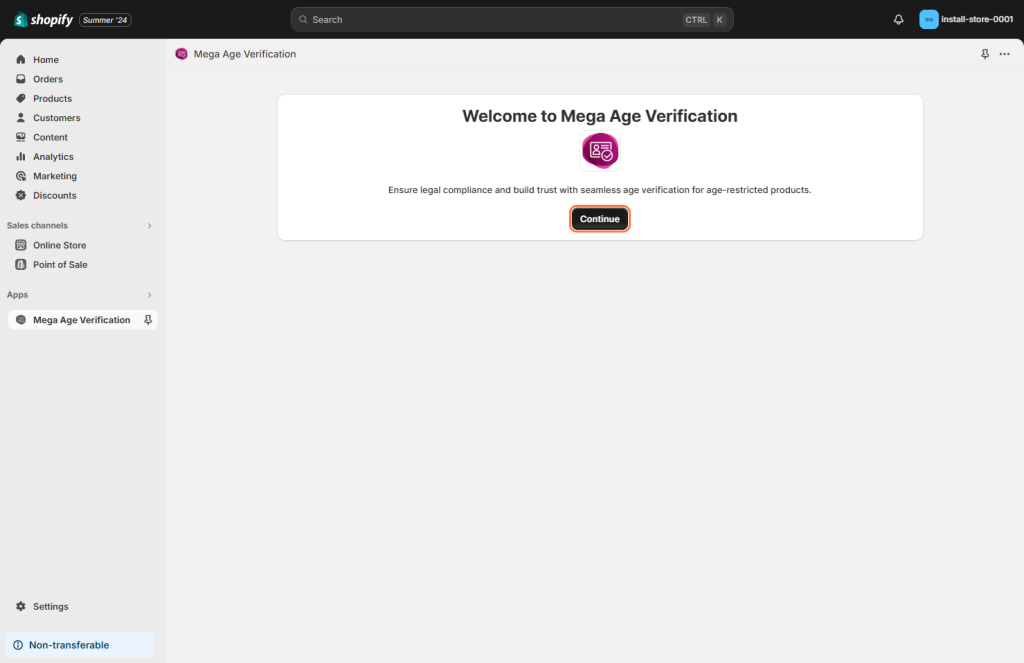
step 5: click “Continue” to start the setup wizard
Mega Age Verification is a quick and simple app to install and set up. From this step, you can be ready within minutes.
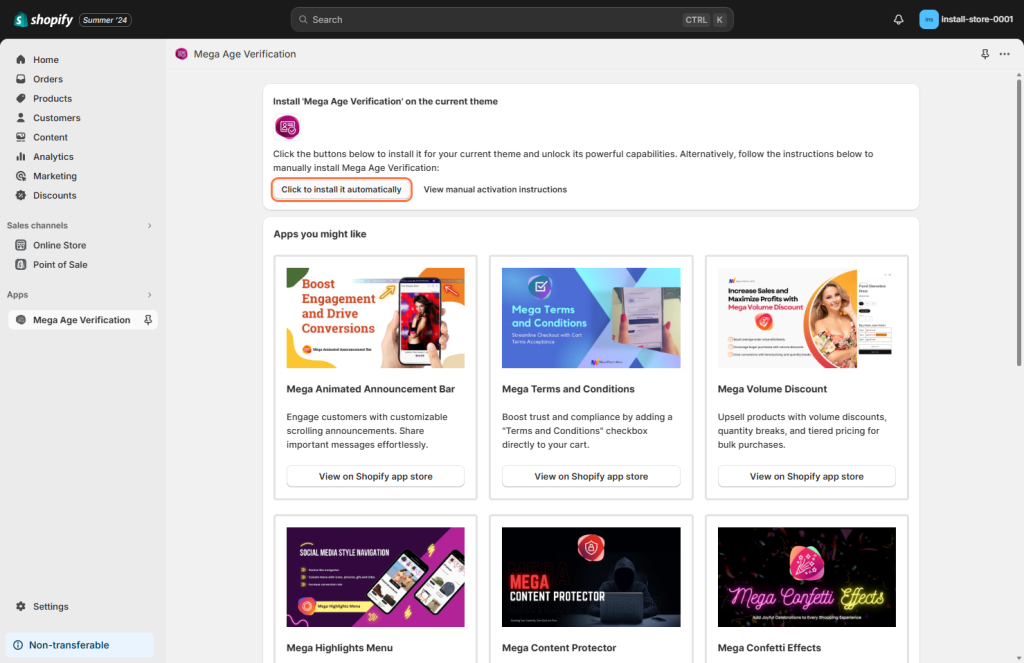
step 6: Click on “Click to Install it Automatically” Button
How to customize the Mega Age Verification pop-up text?
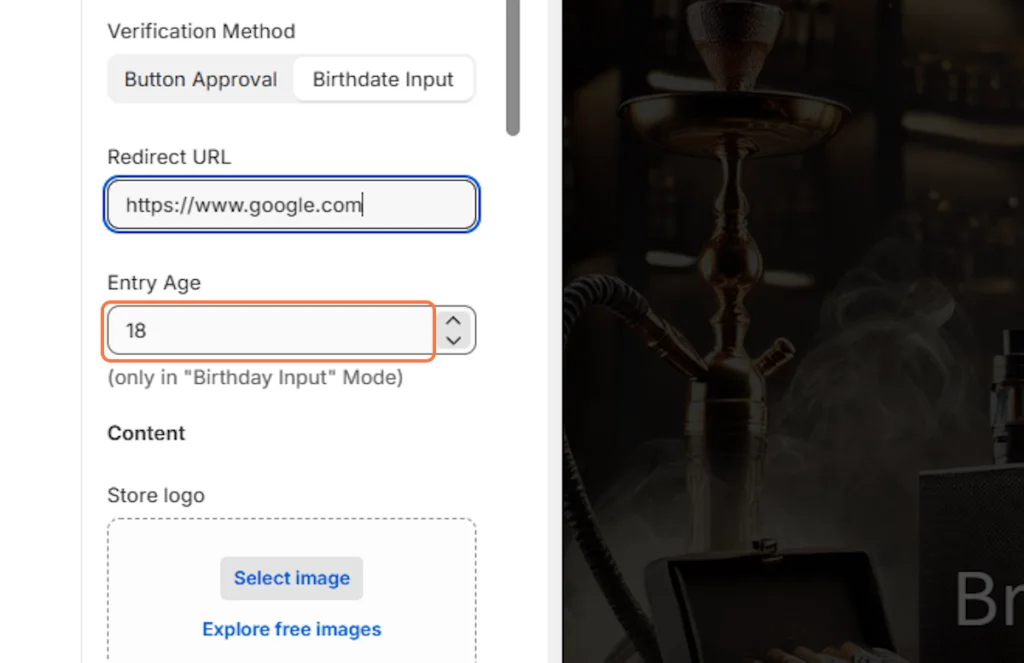
Verification Method
Choose between two verification methods:
- Button Click: Users click a button to confirm their age.
- Birthdate Input: Users enter their birthdate to verify their age.
This customization allows you to match the verification process to your store’s design and user experience.


Redirect URL
Select where underage users will be redirected. Options include an age-appropriate collection or a custom page, such as the “Sorry, you are not old enough” page, or any other URL.

Entry Age
Specify the minimum age required to access your store.
If you choose the Birthdate Input method, the app automatically calculates the minimum birthdate.
How To Change/Add The image/logo in the pop-up window
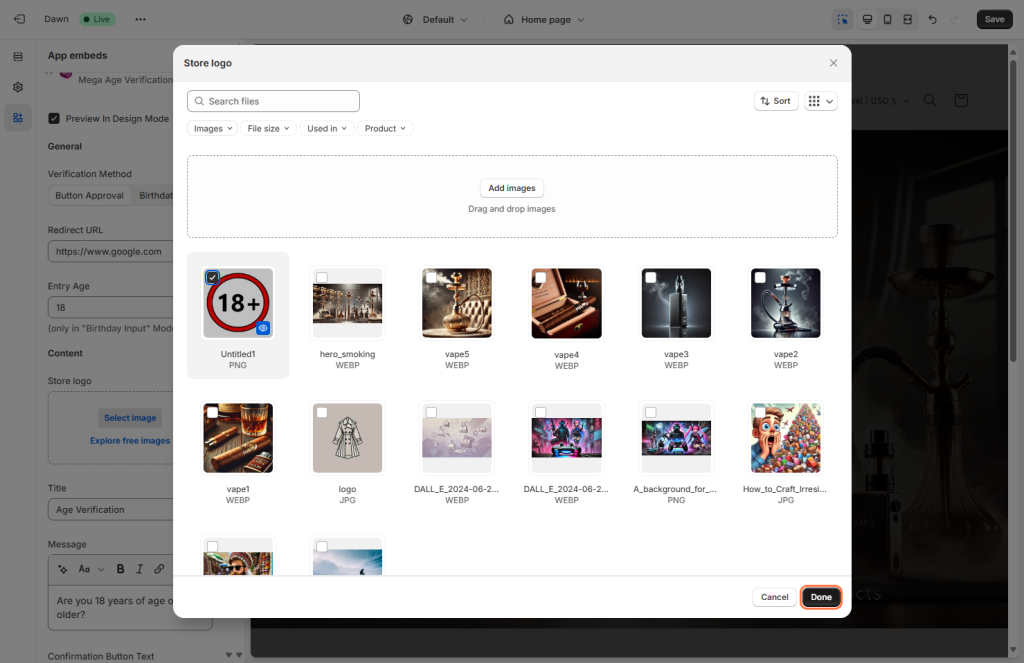
step 1: Click the “Select image” button
Choose an image or logo to display in the pop-up. You can also explore free images if needed.

step 2: Finalize your selection by pressing “Done” at the bottom right corner of the window
If you need to change or delete the logo later, press the “change” button and follow the prompts.
A drop-down menu will appear that will allow you to either delete or remove the image itself.

Text controls and styling
The pop-up consists of several elements:
- Title
- Message
- Confirmation Button
- Rejection Button
You can control the size, style, and color of those elements separately as you see fit.
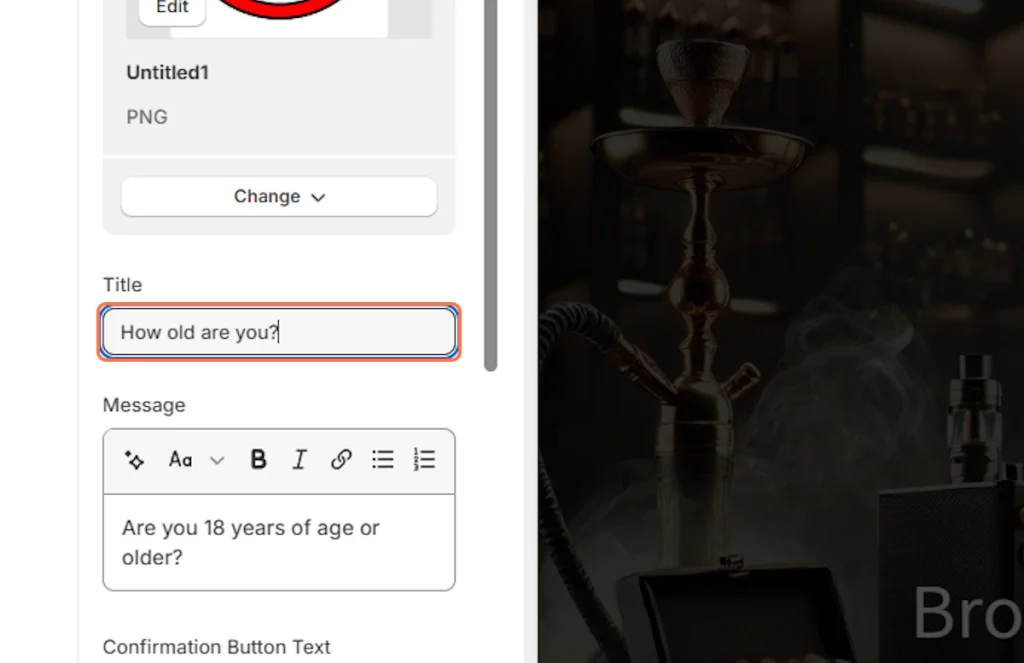
Title & Message
Easily modify the content of the popup and its title to match your store’s design and messaging.
Changing both buttons text
Customize the text for the confirmation and rejection buttons to align with your store’s tone and messaging.

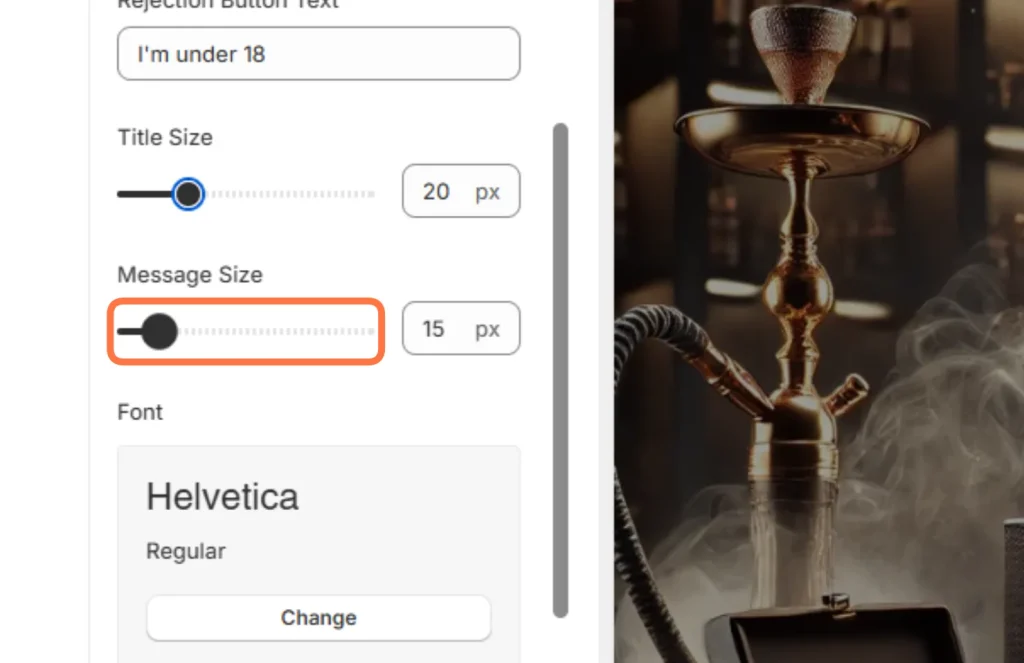
Message Size & Title Size
Adjust the size of the title and message text to fit your store’s design.
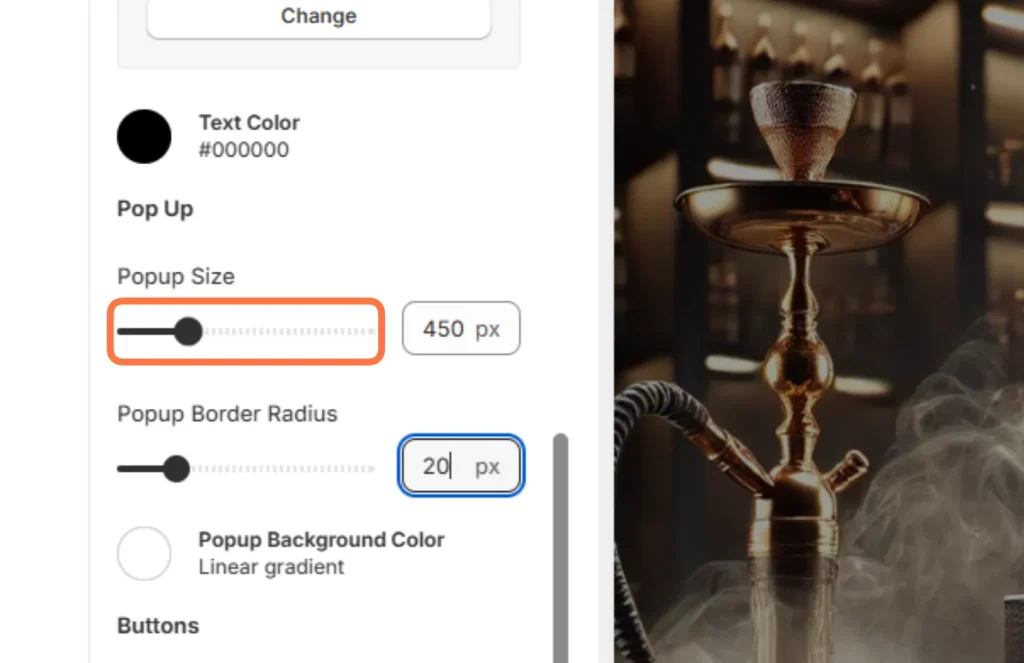
Popup Size & Popup Border Radius
Adjust the overall size and corner radius of your popup to seamlessly integrating with your store’s design.
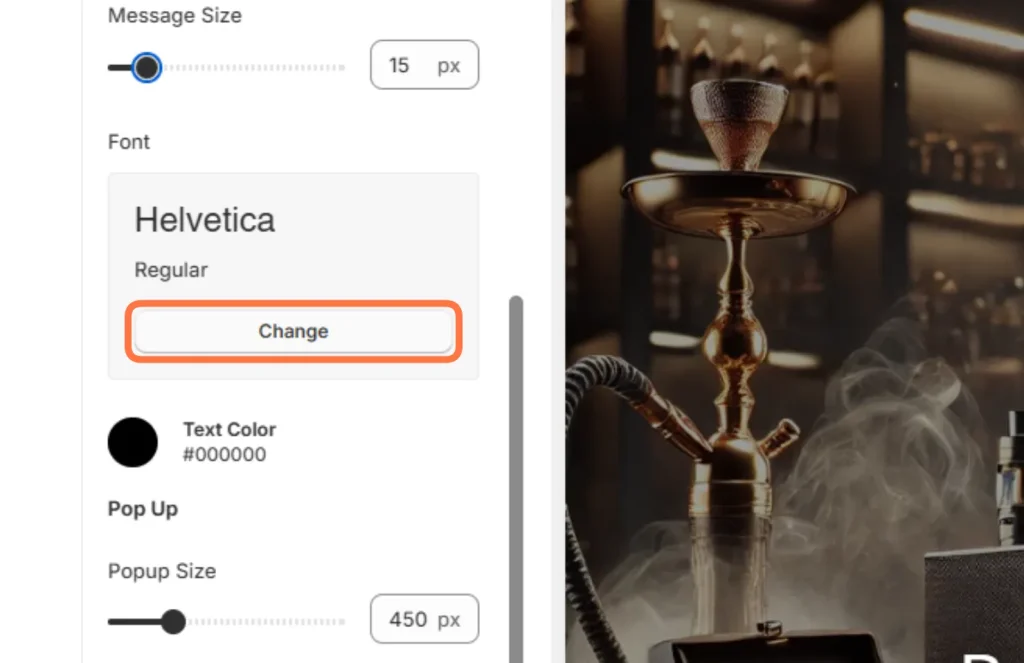
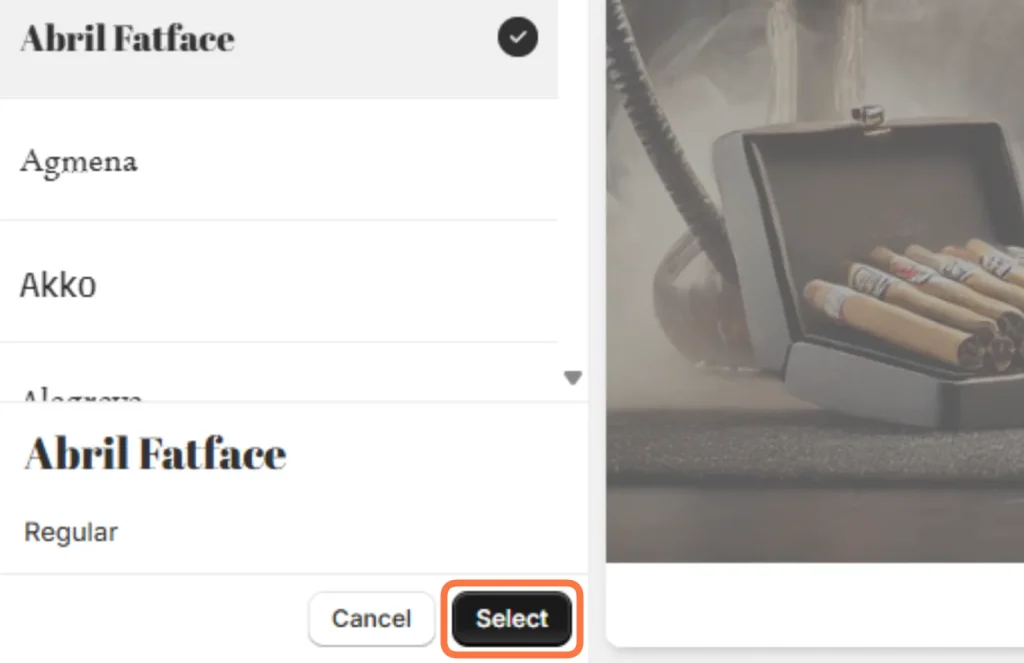
Changing the Font
step 1: press the “Change” button
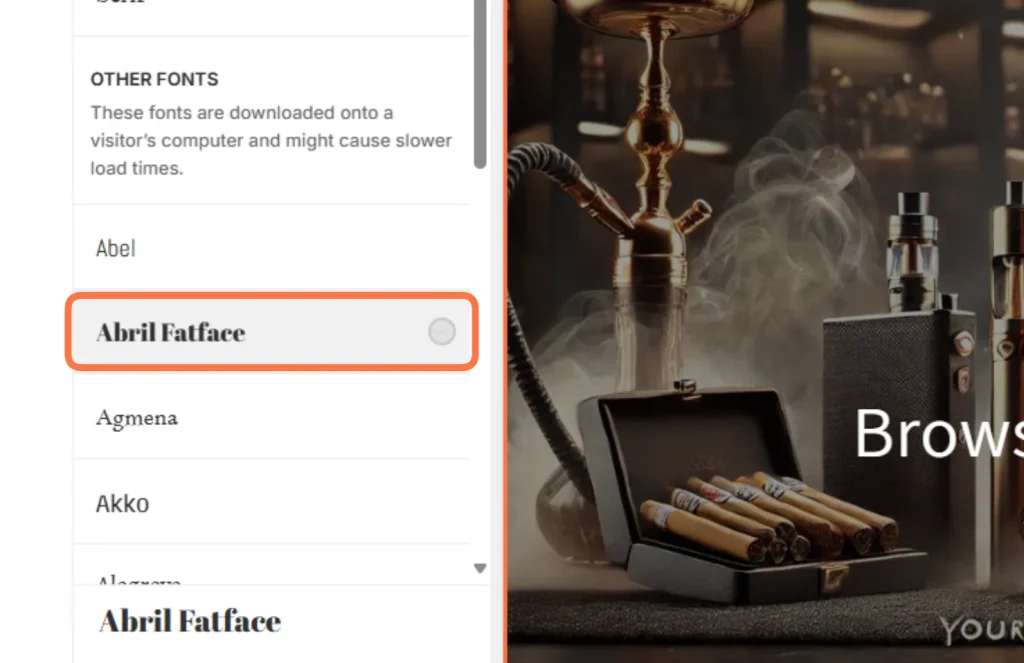
step 2: choose a font
step 3: press “Select”
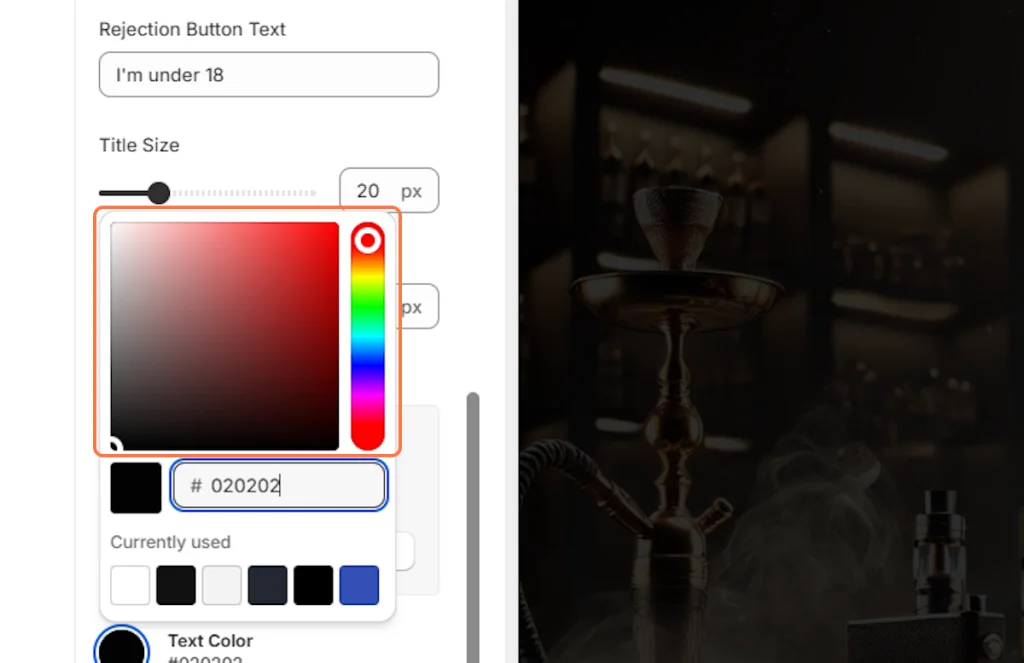
How to change the text color
step 1: Press the dot Next to the “Text Color” label
step 2: Adjust the text color for each element in the pop-up. The process is the same for changing the background color of each button.
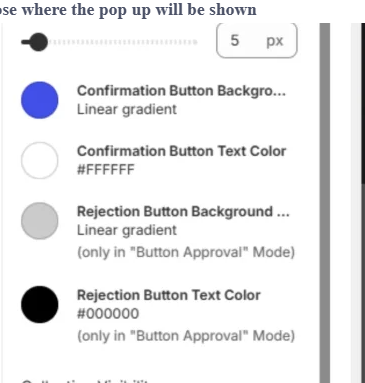
There are also separate controls for each element in the pop-up window. That includes the background color of each button and the text color of each button. But the choosing process of the colors themselves is the same
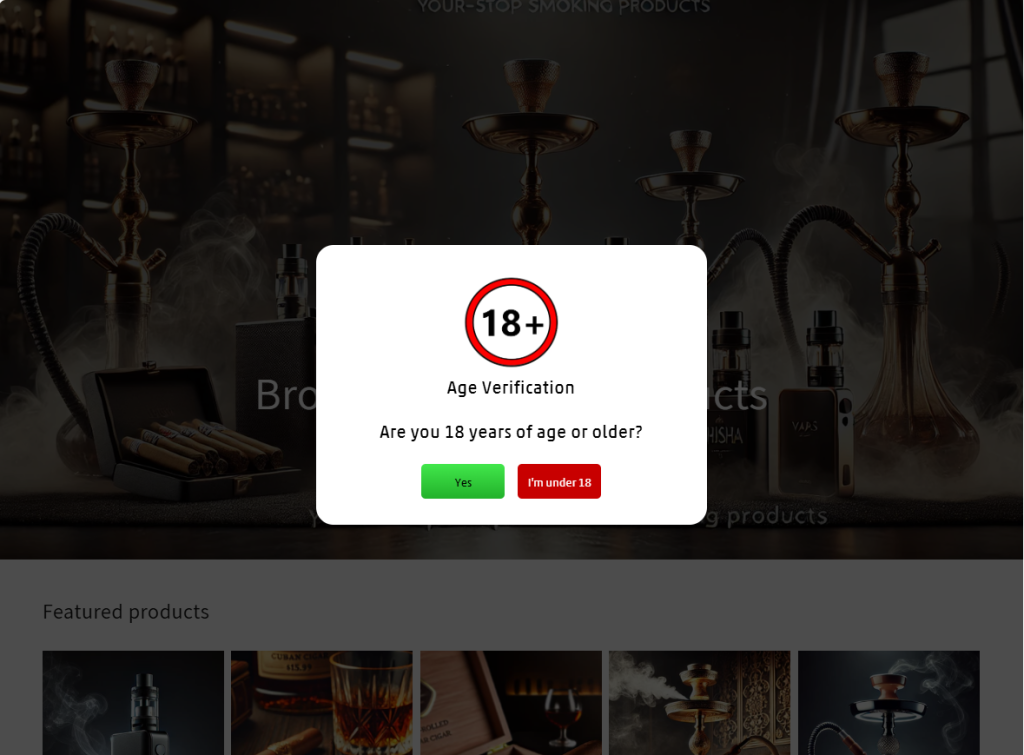
Example result:
How do I choose where the Mega Age Verification pop-up will appear?
By default, the pop-up may appear on any of the shop’s pages. But, it can be changed
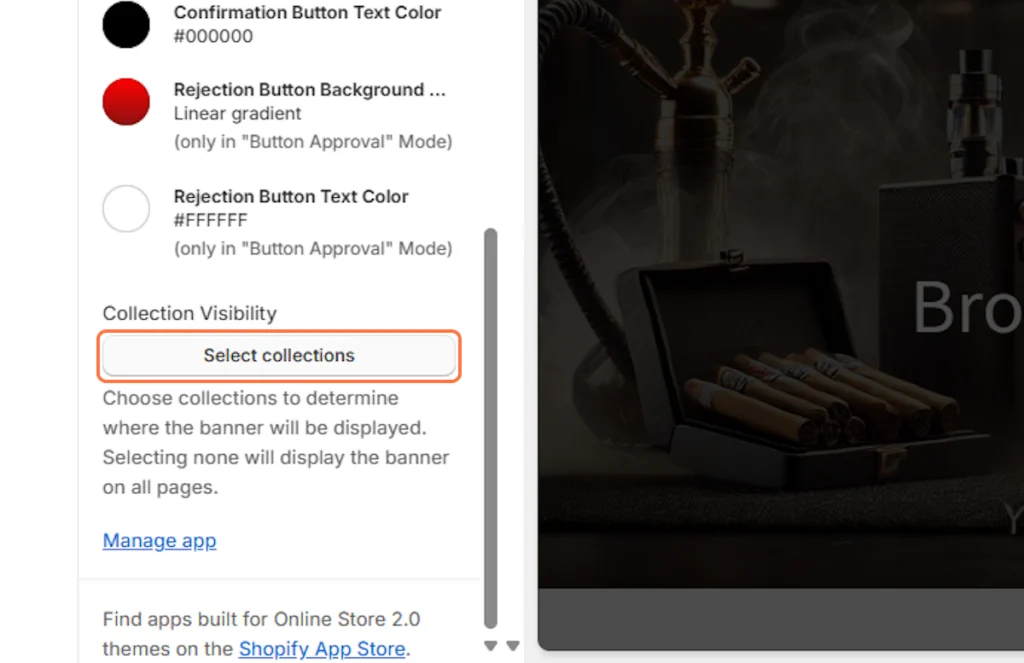
You can set the popup to open on a specific collection/s.
step 1: click on the “Select Collection” button
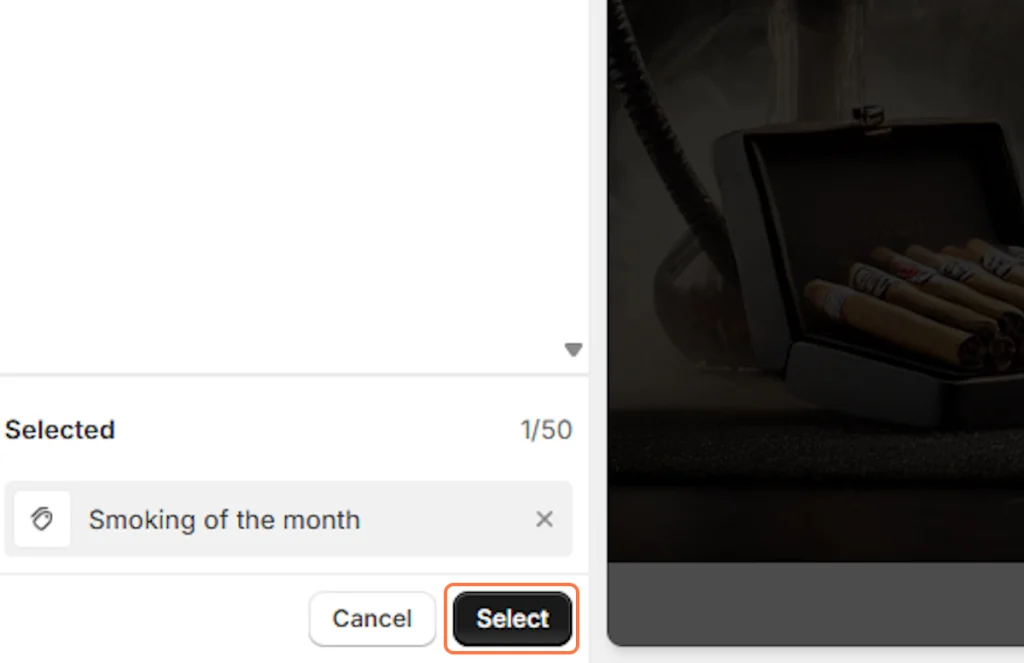
Step 2: Check the Desired Collection

Step 3: Press the “Select” Button
One last thing
Mega Age Verification is fast to set up and lightweight, helping you get up and running quickly. We hope you enjoy using this app as much as many others already have. If you have any questions that aren’t covered in this guide, please feel free to message us.
For a fast and lightweight shop—crucial for SEO and user experience—explore our other apps that cover a variety of styles and functionalities.
Ready to Enhance Your Store’s Compliance and User Experience?
Install Mega Age Verification Now
Happy Selling!
Related Post
Top 8 Age Verification Apps for Shopify (2024)
In the digital marketplace, ensuring that certain products or content reach the right

What I Need To Do Before I Build My Shopify Store?
Shopify has become a go-to platform for aspiring entrepreneurs to launch their online

Stimulating Profitable Sales Off-Season in 2024
Do not wait for special occasions. Stimulate sales in your Shopify store with

Why Do You Need WhatsApp for Your E-Commerce Business?
With over 2 billion active users, WhatsApp serves as a powerful messaging platform